
Create virtual machine with VirtualBox
On this page I will show you how to create an Ubuntu virtual machine using VirtualBox.
What is VirtualBox?
VirtualBox is a powerful x86 and AMD64/Intel64 virtualization product for enterprise as well as home use. Not only is VirtualBox an extremely feature rich, high performance product for enterprise customers, it is also the only professional solution that is freely available as Open Source Software under the terms of the GNU General Public License (GPL) version 2.
Presently, VirtualBox runs on Windows, Linux, Macintosh, and Solaris hosts and supports a large number of guest operating systems including but not limited to Windows, DOS/Windows 3.x, Linux, Solaris and OpenSolaris, OS/2, and OpenBSD.
VirtualBox is being actively developed with frequent releases and has an ever growing list of features, supported guest operating systems and platforms it runs on. VirtualBox is a community effort backed by a dedicated company: everyone is encouraged to contribute while Oracle ensures the product always meets professional quality criteria.
Download and install VirtualBox
To download VirtualBox go to the official download page VirtualBox and click “Windows hosts” in case your computer (host) runs on Windows operation system. Run the .exe file to install the application to your host.
Download the Ubuntu image
For this tutorial we will use the Ubuntu operation system, but you are free to chose your favourite operation system. To download the Ubuntu image go to the official Ubuntu website and click download, the file format should be “*.iso”.
Create new virtual machine
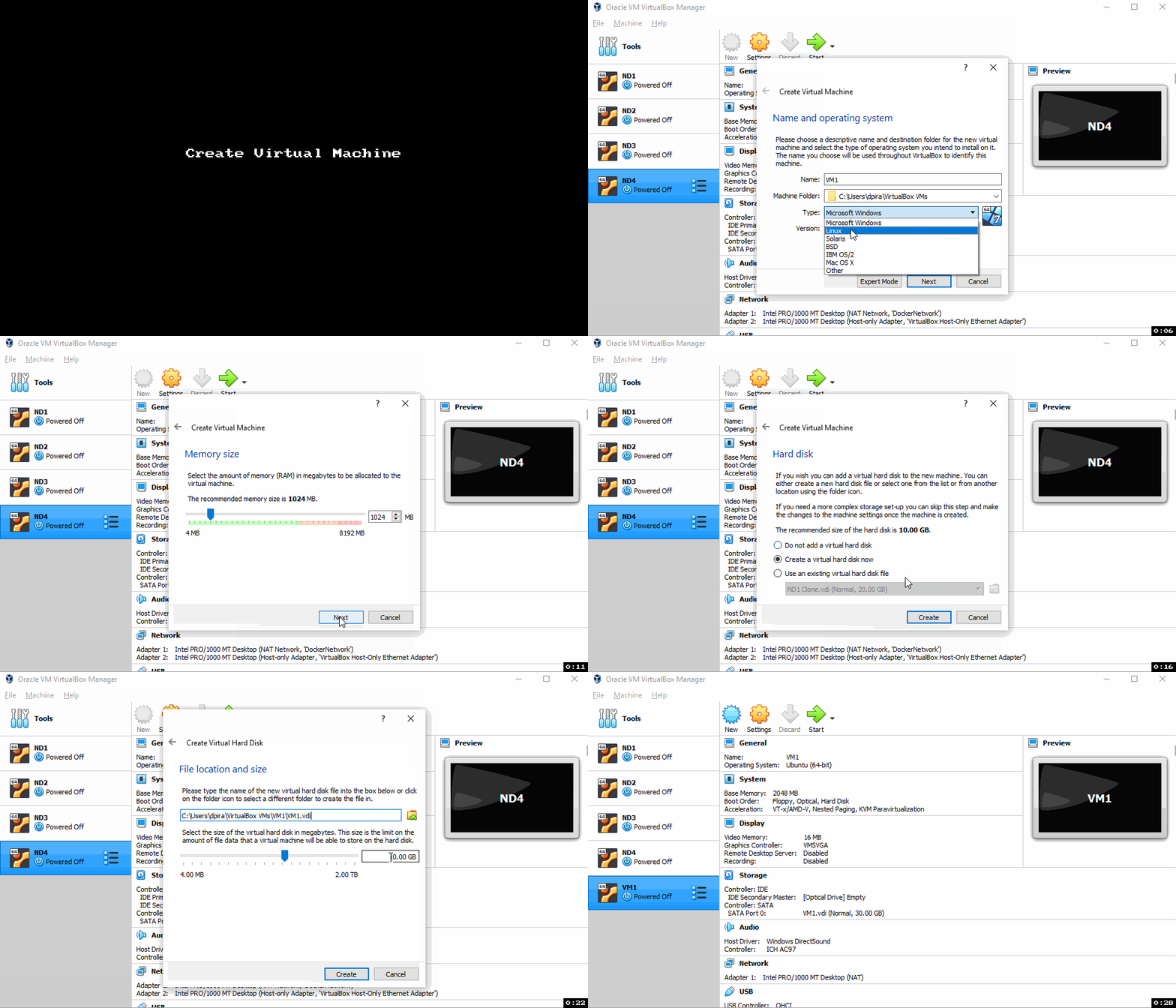
Choose the Ubuntu image for the VM1 instance.

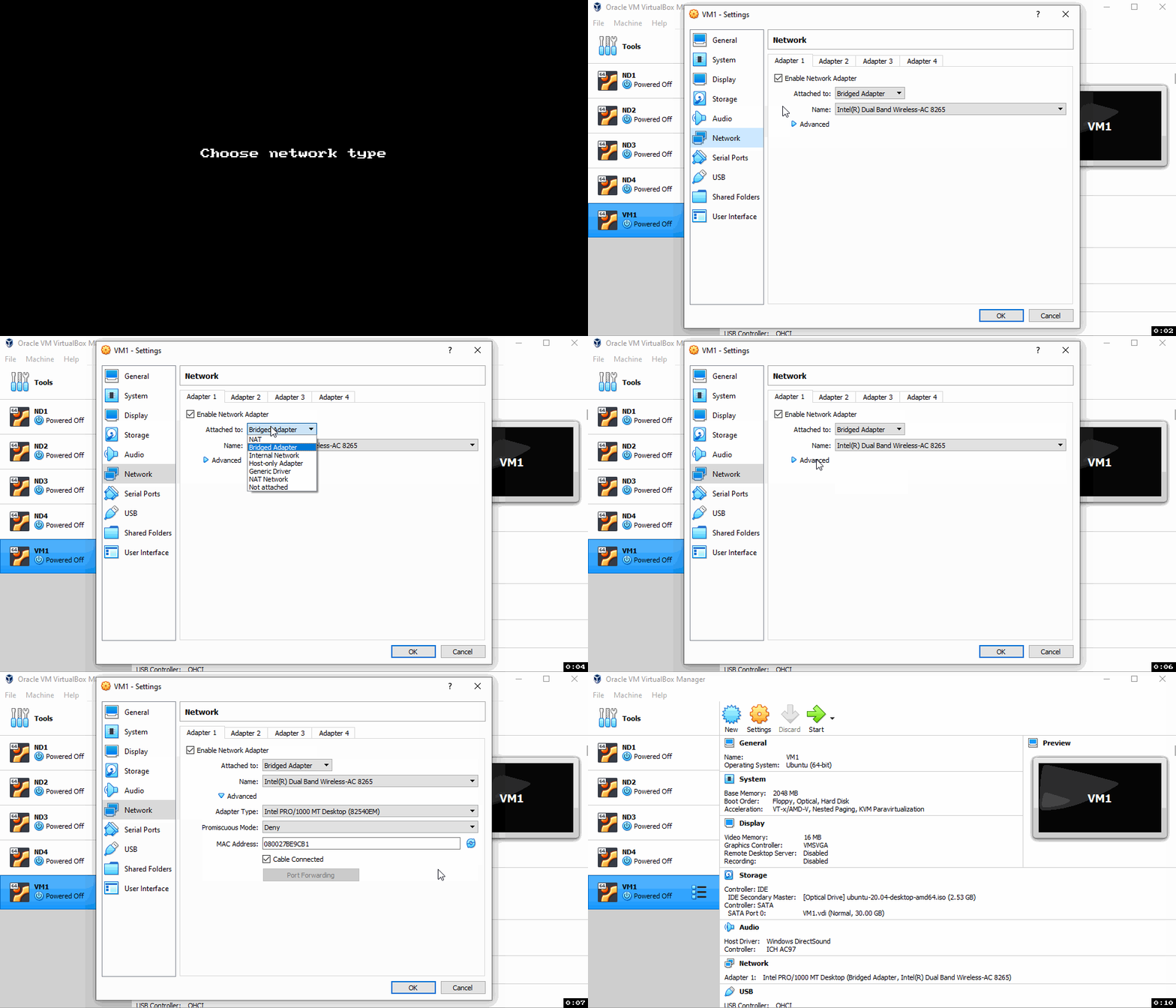
Choose network
For quick setup you can use the bridge network, there will be a new post for advance networking setting for cluster mode.
Install Ubuntu to VM
To start the virtual machine click “Show and then install Ubuntu.
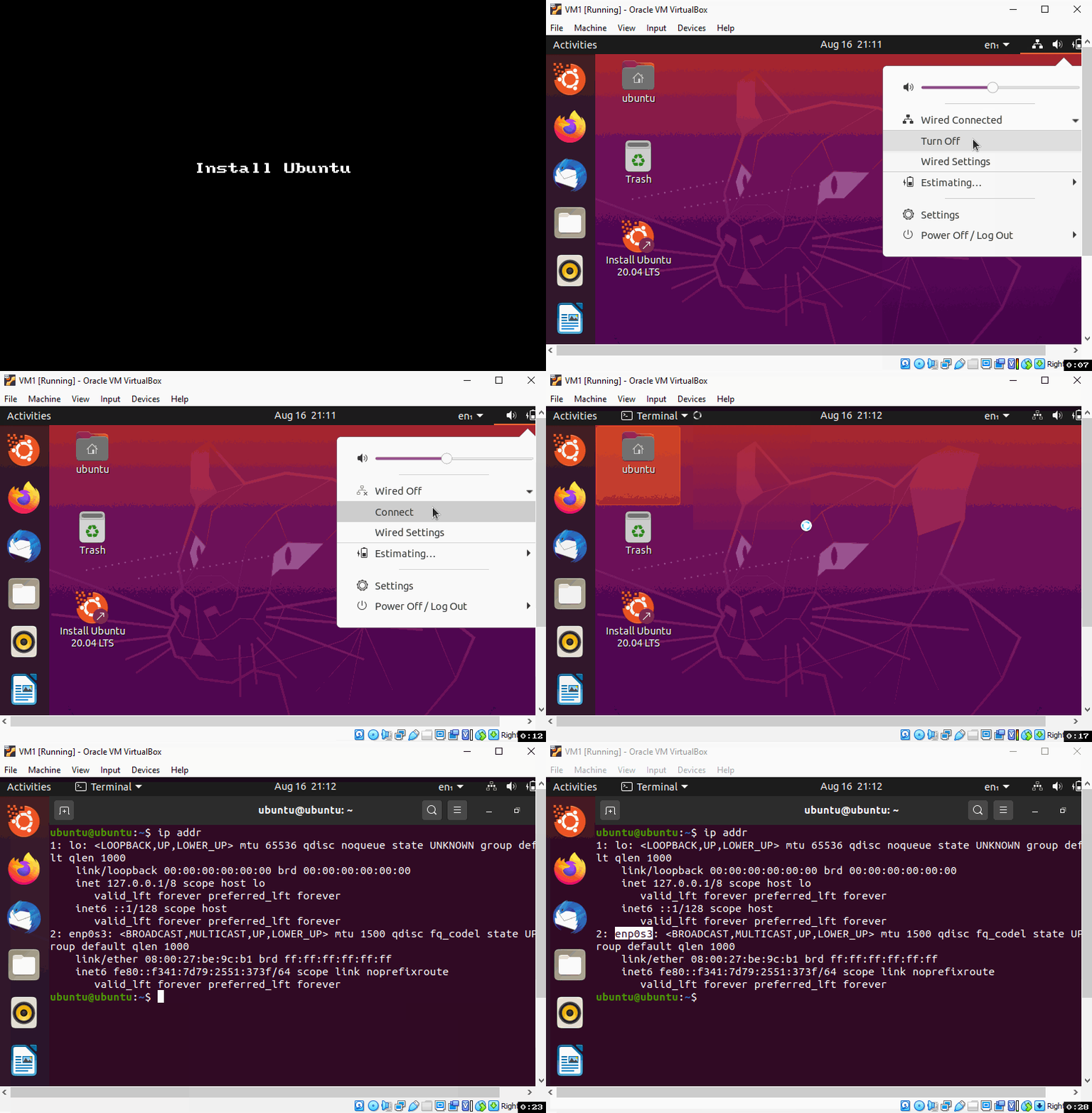
Assign static IP if VM1 didn’t get an IP.
In my case the DHCP of my router failed to provide an IP for the VM1, if your VM1 got IP you can skip this step.
To find what is the default gateway in yout host you can do ipconfig, in my case it is 10.0.0.138, probably in your case it is different.

Congratulations!
Now you have created a Virtual Machine, to connect over ssh read this page.